# maven利用profile实现多环境开发
本文将简单介绍怎样利用maven的profile实现多环境情况下开发程序。一般开发程序分为“dev”开发环境;“prod”生成环境;“test”测试环境;
在开发过程中,我们的项目会存在不同的运行环境,比如开发环境(dev)、测试环境(test)、生产环境(prod),而我们的项目在不同的环境中,有的配置可能会不一样,比如数据源配置、日志文件配置、以及一些软件运行过程中的基本配置,那每次我们将软件部署到不同的环境时,都需要修改相应的配置文件,这样来回修改,很容易出错,而且浪费劳动力。
maven为我们提供了一种更加灵活的解决方案,就是 profile 功能。
### profile的原理
先看一段 pom 文件中的 profile 定义。如下:
```xml
dev
dev
prod
prod
true
test
test
```
可以看到定义了多个 profile,每个 profile 都有唯一的 id,也包含 properties 属性。这里为每个 profile 都定义一个名为 profiles.active 的 properties,每个环境的值不同。当我们打包项目时,激活不同的环境,profiles.active 字段就会被赋予不同的值。
### 应用实例
在正式介绍前,我们先看看项目的结构,如下图所示:
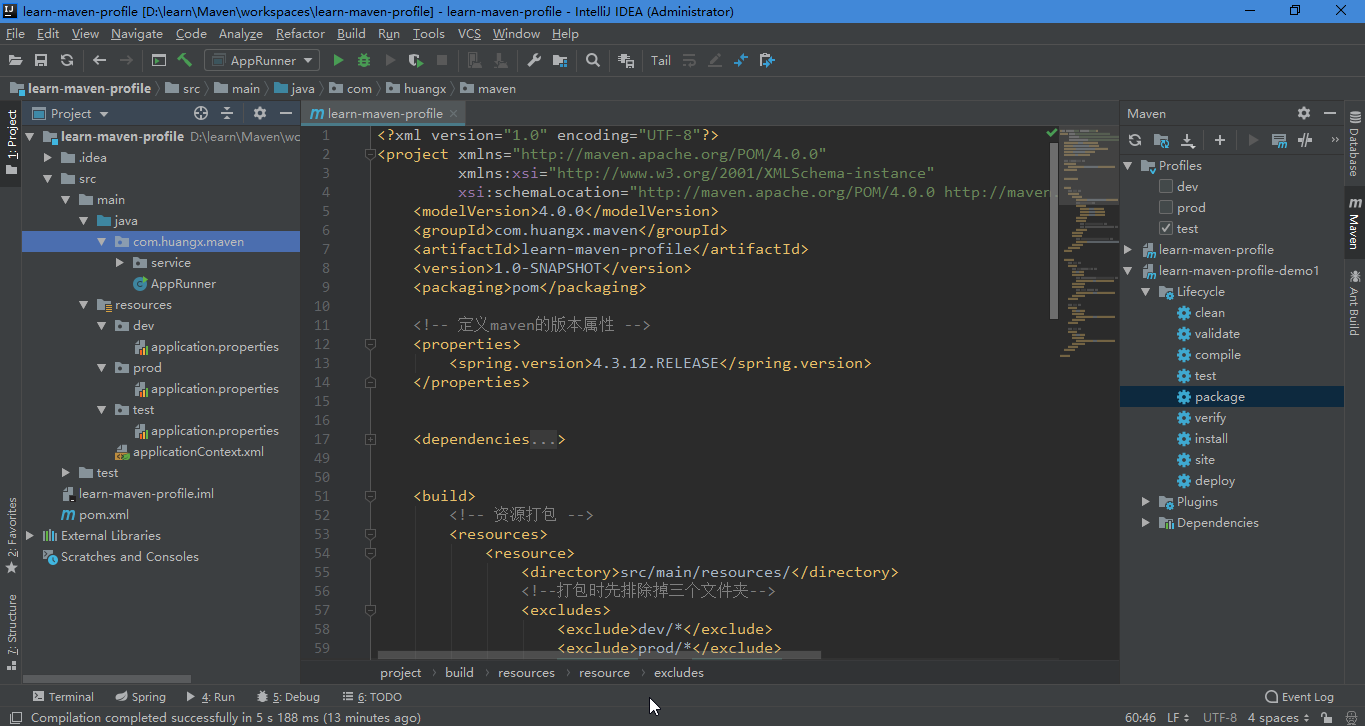
介绍一下,本项目在resouces目录下面创建了三个目录,分别为 dev(开发环境)、prod(生成环境) 和 test(测试环境)。这些目录下面存放属性文件,属性文件中保存项目需要的信息,如:数据库连接信息、调用远程API等信息。上图右边是maven的结构信息,其中显示3个profile,分别为“dev”、“prod”和“test”。
pom.xml 文件内容如下:
注意上面的 元素,必须要设置这些,可以根据自己的需要去调整。
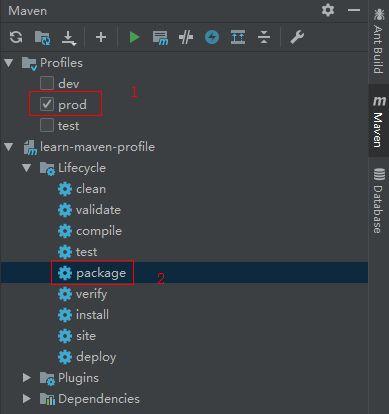
在 IDEA 中的 maven 选项卡,勾选你要打包的 profile,然后执行 package 生命周期。如下图:
执行成功如下图:
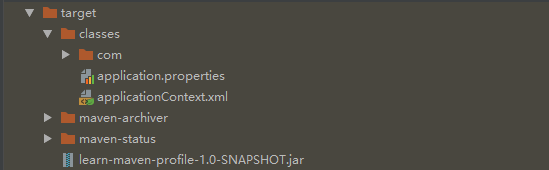
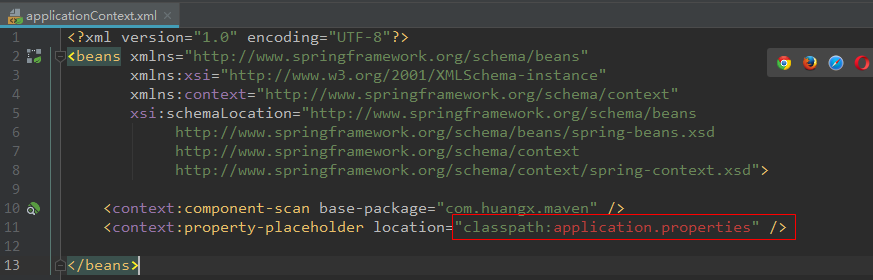
根据上面的配置,你会发现 applicationContex.xml 文件中的 context:property-placeholder 配置飘红了,因为在项目的resources目录下面没有 applicationContext.xml 文件,该文件只存在打包好的target下面。如下图:
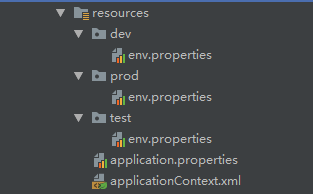
解决这个问题很简单,把我们几个属性文件中的共有属性提取处理啊,放到 resouces 下面的 application.properties 中,然后将 dev/prod/test 目录下面的 application.properties 改名为 env.properties,如下图:
最后,修改 applicationContex.xml 为如下:
```xml
```
---
# Agent Instructions: Querying This Documentation
If you need additional information that is not directly available in this page, you can query the documentation dynamically by asking a question.
Perform an HTTP GET request on the current page URL with the `ask` query parameter:
```
GET https://qiangrens-organization.gitbook.io/qkd90/kai-fa-kuang-jia-he-gong-ju/maven-li-yong-profile-shi-xian-duo-huan-jing-kai-fa.md?ask=
```
The question should be specific, self-contained, and written in natural language.
The response will contain a direct answer to the question and relevant excerpts and sources from the documentation.
Use this mechanism when the answer is not explicitly present in the current page, you need clarification or additional context, or you want to retrieve related documentation sections.